

このセクションでは、自動車向け Android アプリ ライブラリで Navigation SDK を使用して、アプリのナビゲーション エクスペリエンスをダッシュボードのヘッドユニットに表示する方法について説明します。ユーザーの車載システムが Android Auto をサポートしている場合、ユーザーはスマートフォンをユニットに接続して、車載ディスプレイでアプリを直接使用できます。音声案内も車のスピーカーから流れます。

自動車向け Android アプリ ライブラリは、運転者の安全性が認められた一連のビジュアル テンプレートを提供することで、Android アプリケーションを Android Auto で実行できるようにします。これらのテンプレートは、ドライバーの注意散漫を減らすために、ダッシュボード内の UI コントロールをスマートフォンの UI コントロールから意図的に制限します。
Navigation SDK を搭載したアプリで Android Auto を有効にすると、ナビゲーション エクスペリエンス用の追加ビューが提供されます。これにより、スマートフォン用とヘッドユニット用の 2 つの地図ビューが可能になります。どちらのディスプレイも、シングルトンである Navigator.java からガイダンスを受け取ります。
ダッシュボード内のシステムは、安全性が承認されたインタラクティブな要素を表示します。これにより、ユーザーは過度な注意散漫を招くことなく、目的地まで安全に移動できます。ユーザーは、注文の承認や拒否、地図上での顧客の位置情報の確認など、アプリ固有の機能も操作できます。注文ステータスの更新は、ダッシュボード内のユニットにも表示されます。

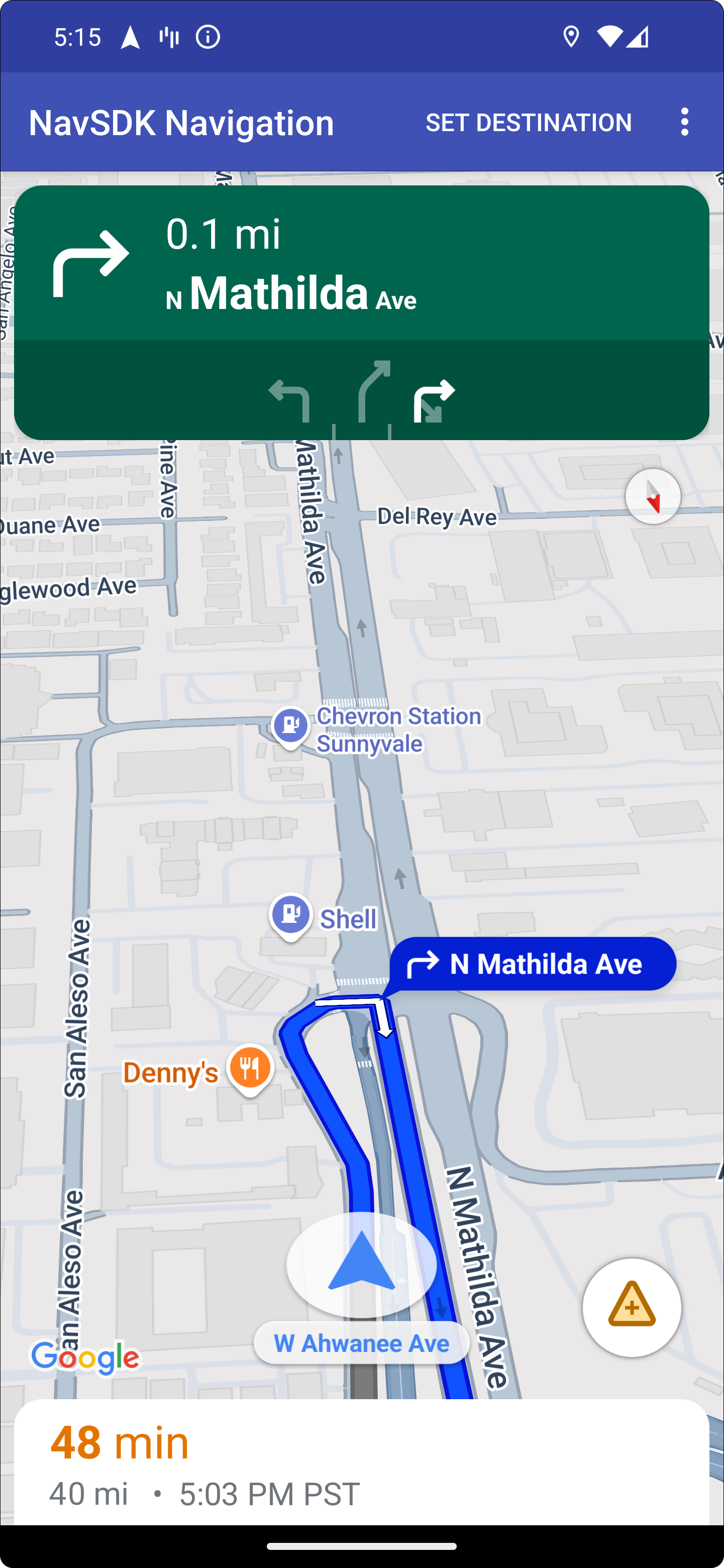
接続されたスマートフォンでは、標準の Navigation SDK エクスペリエンスや、アプリケーション内の他のビューやワークフローを引き続き表示できます。この機能を使用すると、車の画面では適切に動作しない可能性のあるカスタム機能を引き続き提供できます。
設定
アプリを Android Auto で動作させるための最初のステップは、Android Auto でカーサービスを設定し、Navigation SDK アプリで TurnByTurn ライブラリを有効にすることです。
Android Auto を使い始める
Android Auto と連携するように設計された Navigation SDK の機能を使用する前に、Android Auto が検出できるように、アプリのカーサービスを設定する必要があります。
以下の手順に沿って操作します。これらの手順はすべて、Android for Cars デベロッパー ドキュメントに記載されています。
- Android Auto の基本的な機能を理解しておきます。
- 自動車向け Android アプリ ライブラリをインストールします。
- Android Auto を含めるようにアプリのマニフェスト ファイルを構成します。
- マニフェストで最小自動車向けアプリレベルを 1 と宣言します。
- 作成:
CarAppServiceとセッションを作成します。
Navigation SDK を設定する
カーアプリ サービスを確立したら、Navigation SDK を使用する準備が整います。
- アプリに Navigation SDK をまだ統合していない場合は、プロジェクトを設定します。
- アプリのターンバイターン ガイダンス フィードを有効にします。
- 省略可。Navigation SDK から生成されたアイコンを使用します。
Screenクラスで提供される Android Auto Surface のNavigationViewForAutoクラスを使用して、地図を描画します。- TurnbyTurn ライブラリのデータを使用して、Android Auto ナビゲーション テンプレートに入力します。
アプリにナビゲーション情報を提供するサービスを登録し、アプリが Android Auto に接続できるようになったので、アプリが Android Auto で適切に動作するために必要な残りのナビゲーション要素を作成する準備が整いました。
地図とナビゲーションの UI を描画する
NavigationViewForAuto クラスは、Android Auto の画面に地図とナビゲーション UI をレンダリングします。スマートフォン向けの NavigationView とほぼ同じ機能を提供しますが、双方向性は制限されます。NavigationViewForAuto を使用して、Android Auto が提供する Surface に描画します。
private boolean isSurfaceReady(SurfaceContainer surfaceContainer) {
  return surfaceContainer.getSurface() != null
        && surfaceContainer.getDpi() != 0
        && surfaceContainer.getHeight() != 0
        && surfaceContainer.getWidth() != 0;
}

@Override
public void onSurfaceAvailable(@NonNull SurfaceContainer surfaceContainer) {
  if (!isSurfaceReady(surfaceContainer)) {
    return;
   }
  virtualDisplay =
      getCarContext()
          .getSystemService(DisplayManager.class)
          .createVirtualDisplay(
            VIRTUAL_DISPLAY_NAME,
            surfaceContainer.getWidth(),
            surfaceContainer.getHeight(),
            surfaceContainer.getDpi(),
            surfaceContainer.getSurface(),
            DisplayManager.VIRTUAL_DISPLAY_FLAG_OWN_CONTENT_ONLY);
    presentation = new Presentation(getCarContext(), virtualDisplay.getDisplay());

    navigationView = new NavigationViewForAuto(getCarContext());
    navigationView.onCreate(null);
    navigationView.onStart();
    navigationView.onResume();

    presentation.setContentView(navigationView);
    presentation.show();

    navigationView.getMapAsync(googleMap -> this.googleMap = googleMap);
  }

@Override
public void onSurfaceDestroyed(@NonNull SurfaceContainer surfaceContainer) {
  navigationView.onPause();
  navigationView.onStop();
  navigationView.onDestroy();

  presentation.dismiss();
  virtualDisplay.release();
}
地図の操作を有効にする
ドライバーの安全のため、Android Auto では、画面サーフェスの操作を SurfaceCallback メソッドのシーケンスに制限しています。これらのコールバックを使用して、ダッシュボード画面でのマップの操作を制限します。たとえば、onClick と onScale は、ユーザーの タップ
とピンチのジェスチャーに対応します。インタラクティビティ コールバックは、次のようにマップ アクション ストリップを使用する必要があります。
マップ インタラクティビティ コールバックを受け取るには、アプリで Action.PAN ボタンを使用する必要があります。
ユーザー アクションを追加でサポートするには、地図操作ストリップにボタンを追加します。
サーフェス コールバックを有効にする
@NonNull
@Override
public Template onGetTemplate() {
  return new NavigationTemplate.Builder()
    .setActionStrip(new ActionStrip.Builder().build())
    .setMapActionStrip(new ActionStrip.Builder().addAction(Action.PAN).build())
    .build();
}
ピンチでズーム
@Override
public void onScale(float focusX, float focusY, float scaleFactor) {
  CameraUpdate update =
      CameraUpdateFactory.zoomBy((scaleFactor - 1),
                                  new Point((int) focusX, (int) focusY));
  googleMap.animateCamera(update); // map is set in onSurfaceAvailable.
}
パン
@Override
public void onScroll(float distanceX, float distanceY) {
  googleMap.moveCamera(CameraUpdateFactory.scrollBy(distanceX, distanceY));
}
ナビゲーションのルートを表示する
このセクションでは、ナビゲーション投稿のオブザーバーを設定し、ターンカード テンプレートにナビゲーションの指示を入力する方法について説明します。

Android Auto のナビゲーション テンプレートは、現在のドライブに関連するナビゲーション情報を表示するターンカードを提供します。Navigation SDK の TurnByTurn ライブラリは、このナビゲーション情報を提供します。コードはこの情報を使用して、Android Auto ナビゲーション テンプレートに入力します。
オブザーバーを設定する
次の例では、SampleApplication は MutableLiveData<NavInfo> オブジェクトを保持するカスタム アプリケーション クラスです。オブザーバーがナビゲーター オブジェクトから更新を受け取ると、この NavInfo オブジェクトを SampleApplication クラスによって維持される NavInfoMutableLiveData に投稿します。
次の例では、Android Auto の Screen の実装でこのオブジェクトのオブザーバーを登録しています。
public SampleAndroidAutoNavigationScreen(@NonNull CarContext carContext,
                                     SampleApplication application) {
  super(carContext);
  getCarContext().getCarService(AppManager.class).setSurfaceCallback(this);
  application.getNavInfoMutableLiveData().observe(this, this::processNextStep);
}
ナビゲーション情報を入力する
次のコード スニペットは、ステップ、距離、アイコンなどの現在のルート情報を Android Auto テンプレートに入力する方法を示しています。これらの表示要素について詳しくは、フィード表示を設定するをご覧ください。
こちらを開いて、コード例をご確認ください。
private RoutingInfo currentRoutingInfo;

@NonNull
@Override
public Template onGetTemplate() {
NavigationTemplate.Builder navigationTemplateBuilder =
  new NavigationTemplate.Builder()
    .setActionStrip(...)
    .setMapActionStrip(...)
  if (currentRoutingInfo != null) {
    navigationTemplateBuilder.setNavigationInfo(currentRoutingInfo);
  }
  return navigationTemplateBuilder.build();
}

private void processNextStep(NavInfo navInfo) {
  if (navInfo == null || navinfo.getCurrentStep() == null) {
    return;
  }

/**
*   Converts data received from the Navigation data feed
*   into Android-Auto compatible data structures. For more information
*   see the "Ensure correct maneuver types" below.
*/
  Step currentStep = buildStepFromStepInfo(navInfo.getCurrentStep());
  Distance distanceToStep =
              buildDistanceFromMeters(navInfo.getDistanceToCurrentStepMeters());

  currentRoutingInfo =
     new RoutingInfo.Builder().setCurrentStep(currentStep, distanceToStep).build();

  // Invalidate the current template which leads to another onGetTemplate call.
  invalidate();
}

private Step buildStepFromStepInfo(StepInfo stepInfo) {
  IconCompat maneuverIcon =
               IconCompat.createWithBitmap(stepInfo.getManeuverBitmap());
  Maneuver.Builder
            maneuverBuilder = newManeuver.Builder(
                  ManeuverConverter
                          .getAndroidAutoManeuverType(stepInfo.getManeuver()));
  CarIcon maneuverCarIcon = new CarIcon.Builder(maneuverIcon).build();
  maneuverBuilder.setIcon(maneuverCarIcon);
  Step.Builder stepBuilder =
    new Step.Builder()
       .setRoad(stepInfo.getFullRoadName())
       .setCue(stepInfo.getFullInstructionText())
       .setManeuver(maneuverBuilder.build());

  if (stepInfo.getLanes() != null
           && stepInfo.getLanesBitmap() != null) {
    for (Lane lane : buildAndroidAutoLanesFromStep(stepInfo)) {
      stepBuilder.addLane(lane);
    }
    IconCompat lanesIcon =
               IconCompat.createWithBitmap(stepInfo.getLanesBitmap());
    CarIcon lanesImage = new CarIcon.Builder(lanesIcon).build();
    stepBuilder.setLanesImage(lanesImage);
  }
    return stepBuilder.build();
}

/*
*   Constructs a {@code Distance} object in imperial measurement units.
*   In a real world scenario, units would be based on locale.
*/
private Distance buildDistanceFromMeters(int distanceMeters) {

// Distance can be negative so set the min distance to 0.
  int remainingFeet = (int) max(0, distanceMeters * DistanceConstants.FEET_PER_METER);
  double remainingMiles = ((double) remainingFeet) / DistanceConstants.FEET_PER_MILE;

// Only use the tenths place digit if distance is less than 10 miles and show
// feet if distance is less than 0.25 miles.

  if (remainingMiles >= DistanceConstants.MIN_MILES_TO_SHOW_INTEGER) {
    return Distance.create((int) round(remainingMiles), Distance.UNIT_MILES);
  } else if (remainingMiles >= 0.25) {
    return Distance.create((int) remainingMiles, Distance.UNIT_MILES);
  } else {
    return Distance.create(remainingFeet, Distance.UNIT_FEET);
  }
}
正しい操作の種類を確認する
Android Auto Car ライブラリで使用される操作の種類は、TurnByTurn ライブラリで提供される操作と 1 対 1 で対応しています。ただし、Navigation SDK の操作を Android Auto Car ライブラリの有効な宣言に変換する必要があります。次の表に、いくつかのフィールドの対応を示します。その後に、便宜上、コンバータ ユーティリティのサンプルを示します。
| ターンバイターン ライブラリの操作 | Android Auto の操作 |
|---|---|
DEPART |
TYPE_DEPART |
DESTINATION |
TYPE_DESTINATION |
DESTINATION_LEFT |
TYPE_DESTINATION_LEFT |
DESTINATION_RIGHT |
TYPE_DESTINATION_RIGHT |
TURN_U_TURN_CLOCKWISE |
TYPE_U_TURN_RIGHT |
ON_RAMP_LEFT |
TYPE_ON_RAMP_NORMAL_LEFT |
ON_RAMP_RIGHT |
TYPE_ON_RAMP_NORMAL_RIGHT |
ON_RAMP_SLIGHT_LEFT |
TYPE_ON_RAMP_SLIGHT_LEFT |
FORK_RIGHT |
TYPE_FORK_RIGHT |
こちらを開いて、コード例をご確認ください。
import com.google.android.libraries.mapsplatform.turnbyturn.model.Maneuver;
import com.google.common.collect.ImmutableMap;
import javax.annotation.Nullable;

/** Converter that converts between turn-by-turn and Android Auto Maneuvers. */
public final class ManeuverConverter {
  private ManeuverConverter() {}

  // Map from turn-by-turn Maneuver to Android Auto Maneuver.Type.
  private static final ImmutableMap<Integer, Integer> MANEUVER_TO_ANDROID_AUTO_MANEUVER_TYPE =
      ImmutableMap.<Integer, Integer>builder()
          .put(Maneuver.DEPART, androidx.car.app.navigation.model.Maneuver.TYPE_DEPART)
          .put(Maneuver.DESTINATION, androidx.car.app.navigation.model.Maneuver.TYPE_DESTINATION)
          .put(
              Maneuver.DESTINATION_LEFT,
              androidx.car.app.navigation.model.Maneuver.TYPE_DESTINATION_LEFT)
          .put(
              Maneuver.DESTINATION_RIGHT,
              androidx.car.app.navigation.model.Maneuver.TYPE_DESTINATION_RIGHT)
          .put(Maneuver.STRAIGHT, androidx.car.app.navigation.model.Maneuver.TYPE_STRAIGHT)
          .put(Maneuver.TURN_LEFT, androidx.car.app.navigation.model.Maneuver.TYPE_TURN_NORMAL_LEFT)
          .put(
              Maneuver.TURN_RIGHT,
              androidx.car.app.navigation.model.Maneuver.TYPE_TURN_NORMAL_RIGHT)
          .put(Maneuver.TURN_KEEP_LEFT, androidx.car.app.navigation.model.Maneuver.TYPE_KEEP_LEFT)
          .put(Maneuver.TURN_KEEP_RIGHT, androidx.car.app.navigation.model.Maneuver.TYPE_KEEP_RIGHT)
          .put(
              Maneuver.TURN_SLIGHT_LEFT,
              androidx.car.app.navigation.model.Maneuver.TYPE_TURN_SLIGHT_LEFT)
          .put(
              Maneuver.TURN_SLIGHT_RIGHT,
              androidx.car.app.navigation.model.Maneuver.TYPE_TURN_SLIGHT_RIGHT)
          .put(
              Maneuver.TURN_SHARP_LEFT,
              androidx.car.app.navigation.model.Maneuver.TYPE_TURN_SHARP_LEFT)
          .put(
              Maneuver.TURN_SHARP_RIGHT,
              androidx.car.app.navigation.model.Maneuver.TYPE_ON_RAMP_SHARP_RIGHT)
          .put(
              Maneuver.TURN_U_TURN_CLOCKWISE,
              androidx.car.app.navigation.model.Maneuver.TYPE_U_TURN_RIGHT)
          .put(
              Maneuver.TURN_U_TURN_COUNTERCLOCKWISE,
              androidx.car.app.navigation.model.Maneuver.TYPE_U_TURN_LEFT)
          .put(
              Maneuver.MERGE_UNSPECIFIED,
              androidx.car.app.navigation.model.Maneuver.TYPE_MERGE_SIDE_UNSPECIFIED)
          .put(Maneuver.MERGE_LEFT, androidx.car.app.navigation.model.Maneuver.TYPE_MERGE_LEFT)
          .put(Maneuver.MERGE_RIGHT, androidx.car.app.navigation.model.Maneuver.TYPE_MERGE_RIGHT)
          .put(Maneuver.FORK_LEFT, androidx.car.app.navigation.model.Maneuver.TYPE_FORK_LEFT)
          .put(Maneuver.FORK_RIGHT, androidx.car.app.navigation.model.Maneuver.TYPE_FORK_RIGHT)
          .put(
              Maneuver.ON_RAMP_UNSPECIFIED,
              androidx.car.app.navigation.model.Maneuver.TYPE_ON_RAMP_NORMAL_RIGHT)
          .put(
              Maneuver.ON_RAMP_LEFT,
              androidx.car.app.navigation.model.Maneuver.TYPE_ON_RAMP_NORMAL_LEFT)
          .put(
              Maneuver.ON_RAMP_RIGHT,
              androidx.car.app.navigation.model.Maneuver.TYPE_ON_RAMP_NORMAL_RIGHT)
          .put(
              Maneuver.ON_RAMP_KEEP_LEFT,
              androidx.car.app.navigation.model.Maneuver.TYPE_ON_RAMP_NORMAL_LEFT)
          .put(
              Maneuver.ON_RAMP_KEEP_RIGHT,
              androidx.car.app.navigation.model.Maneuver.TYPE_ON_RAMP_NORMAL_RIGHT)
          .put(
              Maneuver.ON_RAMP_SLIGHT_LEFT,
              androidx.car.app.navigation.model.Maneuver.TYPE_ON_RAMP_SLIGHT_LEFT)
          .put(
              Maneuver.ON_RAMP_SLIGHT_RIGHT,
              androidx.car.app.navigation.model.Maneuver.TYPE_ON_RAMP_SLIGHT_RIGHT)
          .put(
              Maneuver.ON_RAMP_SHARP_LEFT,
              androidx.car.app.navigation.model.Maneuver.TYPE_ON_RAMP_SHARP_LEFT)
          .put(
              Maneuver.ON_RAMP_SHARP_RIGHT,
              androidx.car.app.navigation.model.Maneuver.TYPE_ON_RAMP_SHARP_RIGHT)
          .put(
              Maneuver.ON_RAMP_U_TURN_CLOCKWISE,
              androidx.car.app.navigation.model.Maneuver.TYPE_ON_RAMP_U_TURN_RIGHT)
          .put(
              Maneuver.ON_RAMP_U_TURN_COUNTERCLOCKWISE,
              androidx.car.app.navigation.model.Maneuver.TYPE_ON_RAMP_U_TURN_LEFT)
          .put(
              Maneuver.OFF_RAMP_LEFT,
              androidx.car.app.navigation.model.Maneuver.TYPE_OFF_RAMP_NORMAL_LEFT)
          .put(
              Maneuver.OFF_RAMP_RIGHT,
              androidx.car.app.navigation.model.Maneuver.TYPE_OFF_RAMP_NORMAL_RIGHT)
          .put(
              Maneuver.OFF_RAMP_KEEP_LEFT,
              androidx.car.app.navigation.model.Maneuver.TYPE_OFF_RAMP_SLIGHT_LEFT)
          .put(
              Maneuver.OFF_RAMP_KEEP_RIGHT,
              androidx.car.app.navigation.model.Maneuver.TYPE_OFF_RAMP_SLIGHT_RIGHT)
          .put(
              Maneuver.OFF_RAMP_SLIGHT_LEFT,
              androidx.car.app.navigation.model.Maneuver.TYPE_OFF_RAMP_SLIGHT_LEFT)
          .put(
              Maneuver.OFF_RAMP_SLIGHT_RIGHT,
              androidx.car.app.navigation.model.Maneuver.TYPE_OFF_RAMP_SLIGHT_RIGHT)
          .put(
              Maneuver.OFF_RAMP_SHARP_LEFT,
              androidx.car.app.navigation.model.Maneuver.TYPE_OFF_RAMP_NORMAL_LEFT)
          .put(
              Maneuver.OFF_RAMP_SHARP_RIGHT,
              androidx.car.app.navigation.model.Maneuver.TYPE_OFF_RAMP_NORMAL_RIGHT)
          .put(
              Maneuver.ROUNDABOUT_CLOCKWISE,
              androidx.car.app.navigation.model.Maneuver.TYPE_ROUNDABOUT_ENTER_AND_EXIT_CW)
          .put(
              Maneuver.ROUNDABOUT_COUNTERCLOCKWISE,
              androidx.car.app.navigation.model.Maneuver.TYPE_ROUNDABOUT_ENTER_AND_EXIT_CCW)
          .put(
              Maneuver.ROUNDABOUT_STRAIGHT_CLOCKWISE,
              androidx.car.app.navigation.model.Maneuver.TYPE_ROUNDABOUT_ENTER_CW)
          .put(
              Maneuver.ROUNDABOUT_STRAIGHT_COUNTERCLOCKWISE,
              androidx.car.app.navigation.model.Maneuver.TYPE_ROUNDABOUT_ENTER_CCW)
          .put(
              Maneuver.ROUNDABOUT_LEFT_CLOCKWISE,
              androidx.car.app.navigation.model.Maneuver
                  .TYPE_ROUNDABOUT_ENTER_AND_EXIT_CW_WITH_ANGLE)
          .put(
              Maneuver.ROUNDABOUT_LEFT_COUNTERCLOCKWISE,
              androidx.car.app.navigation.model.Maneuver
                  .TYPE_ROUNDABOUT_ENTER_AND_EXIT_CCW_WITH_ANGLE)
          .put(
              Maneuver.ROUNDABOUT_RIGHT_CLOCKWISE,
              androidx.car.app.navigation.model.Maneuver
                  .TYPE_ROUNDABOUT_ENTER_AND_EXIT_CW_WITH_ANGLE)
          .put(
              Maneuver.ROUNDABOUT_RIGHT_COUNTERCLOCKWISE,
              androidx.car.app.navigation.model.Maneuver
                  .TYPE_ROUNDABOUT_ENTER_AND_EXIT_CCW_WITH_ANGLE)
          .put(
              Maneuver.ROUNDABOUT_SLIGHT_LEFT_CLOCKWISE,
              androidx.car.app.navigation.model.Maneuver
                  .TYPE_ROUNDABOUT_ENTER_AND_EXIT_CW_WITH_ANGLE)
          .put(
              Maneuver.ROUNDABOUT_SLIGHT_LEFT_COUNTERCLOCKWISE,
              androidx.car.app.navigation.model.Maneuver
                  .TYPE_ROUNDABOUT_ENTER_AND_EXIT_CCW_WITH_ANGLE)
          .put(
              Maneuver.ROUNDABOUT_SLIGHT_RIGHT_CLOCKWISE,
              androidx.car.app.navigation.model.Maneuver
                  .TYPE_ROUNDABOUT_ENTER_AND_EXIT_CW_WITH_ANGLE)
          .put(
              Maneuver.ROUNDABOUT_SLIGHT_RIGHT_COUNTERCLOCKWISE,
              androidx.car.app.navigation.model.Maneuver
                  .TYPE_ROUNDABOUT_ENTER_AND_EXIT_CCW_WITH_ANGLE)
          .put(
              Maneuver.ROUNDABOUT_SHARP_LEFT_CLOCKWISE,
              androidx.car.app.navigation.model.Maneuver
                  .TYPE_ROUNDABOUT_ENTER_AND_EXIT_CW_WITH_ANGLE)
          .put(
              Maneuver.ROUNDABOUT_SHARP_LEFT_COUNTERCLOCKWISE,
              androidx.car.app.navigation.model.Maneuver
                  .TYPE_ROUNDABOUT_ENTER_AND_EXIT_CCW_WITH_ANGLE)
          .put(
              Maneuver.ROUNDABOUT_SHARP_RIGHT_CLOCKWISE,
              androidx.car.app.navigation.model.Maneuver
                  .TYPE_ROUNDABOUT_ENTER_AND_EXIT_CW_WITH_ANGLE)
          .put(
              Maneuver.ROUNDABOUT_SHARP_RIGHT_COUNTERCLOCKWISE,
              androidx.car.app.navigation.model.Maneuver
                  .TYPE_ROUNDABOUT_ENTER_AND_EXIT_CCW_WITH_ANGLE)
          .put(
              Maneuver.ROUNDABOUT_U_TURN_CLOCKWISE,
              androidx.car.app.navigation.model.Maneuver
                  .TYPE_ROUNDABOUT_ENTER_AND_EXIT_CW_WITH_ANGLE)
          .put(
              Maneuver.ROUNDABOUT_U_TURN_COUNTERCLOCKWISE,
              androidx.car.app.navigation.model.Maneuver
                  .TYPE_ROUNDABOUT_ENTER_AND_EXIT_CCW_WITH_ANGLE)
          .put(
              Maneuver.ROUNDABOUT_EXIT_CLOCKWISE,
              androidx.car.app.navigation.model.Maneuver.TYPE_ROUNDABOUT_EXIT_CW)
          .put(
              Maneuver.ROUNDABOUT_EXIT_COUNTERCLOCKWISE,
              androidx.car.app.navigation.model.Maneuver.TYPE_ROUNDABOUT_EXIT_CCW)
          .put(Maneuver.FERRY_BOAT, androidx.car.app.navigation.model.Maneuver.TYPE_FERRY_BOAT)
          .put(Maneuver.FERRY_TRAIN, androidx.car.app.navigation.model.Maneuver.TYPE_FERRY_TRAIN)
          .put(Maneuver.NAME_CHANGE, androidx.car.app.navigation.model.Maneuver.TYPE_NAME_CHANGE)
          .buildOrThrow();

  /** Represents the roundabout turn angle for a slight turn in either right or left directions. */
  private static final int ROUNDABOUT_ANGLE_SLIGHT = 10;

  /** Represents the roundabout turn angle for a normal turn in either right or left directions. */
  private static final int ROUNDABOUT_ANGLE_NORMAL = 45;

  /** Represents the roundabout turn angle for a sharp turn in either right or left directions. */
  private static final int ROUNDABOUT_ANGLE_SHARP = 135;

  /** Represents the roundabout turn angle for a u-turn in either right or left directions. */
  private static final int ROUNDABOUT_ANGLE_U_TURN = 180;

  /**
   * Returns the corresponding {@link androidx.car.app.navigation.model.Maneuver.Type} for the given
   * direction {@link Maneuver}
   *
   * @throws {@link IllegalArgumentException} if the given maneuver does not have a corresponding
   *     Android Auto Maneuver type.
   */
  public static int getAndroidAutoManeuverType(@Maneuver int maneuver) {
    if (MANEUVER_TO_ANDROID_AUTO_MANEUVER_TYPE.containsKey(maneuver)) {
      return MANEUVER_TO_ANDROID_AUTO_MANEUVER_TYPE.get(maneuver);
    }
    throw new IllegalArgumentException(
        String.format(
            "Given turn-by-turn Maneuver %d cannot be converted to an Android Auto equivalent.",
            maneuver));
  }

  /**
   * Returns the corresponding Android Auto roundabout angle for the given turn {@link Maneuver}.
   * Returns {@code null} if given maneuver does not involve a roundabout with a turn.
   */
  @Nullable
  public static Integer getAndroidAutoRoundaboutAngle(@Maneuver int maneuver) {
    if (maneuver == Maneuver.ROUNDABOUT_LEFT_CLOCKWISE
        || maneuver == Maneuver.ROUNDABOUT_RIGHT_CLOCKWISE
        || maneuver == Maneuver.ROUNDABOUT_LEFT_COUNTERCLOCKWISE
        || maneuver == Maneuver.ROUNDABOUT_RIGHT_COUNTERCLOCKWISE) {
      return ROUNDABOUT_ANGLE_NORMAL;
    }
    if (maneuver == Maneuver.ROUNDABOUT_SHARP_LEFT_CLOCKWISE
        || maneuver == Maneuver.ROUNDABOUT_SHARP_RIGHT_CLOCKWISE
        || maneuver == Maneuver.ROUNDABOUT_SHARP_LEFT_COUNTERCLOCKWISE
        || maneuver == Maneuver.ROUNDABOUT_SHARP_RIGHT_COUNTERCLOCKWISE) {
      return ROUNDABOUT_ANGLE_SHARP;
    }
    if (maneuver == Maneuver.ROUNDABOUT_SLIGHT_LEFT_CLOCKWISE
        || maneuver == Maneuver.ROUNDABOUT_SLIGHT_RIGHT_CLOCKWISE
        || maneuver == Maneuver.ROUNDABOUT_SLIGHT_LEFT_COUNTERCLOCKWISE
        || maneuver == Maneuver.ROUNDABOUT_SLIGHT_RIGHT_COUNTERCLOCKWISE) {
      return ROUNDABOUT_ANGLE_SLIGHT;
    }
    if (maneuver == Maneuver.ROUNDABOUT_U_TURN_CLOCKWISE
        || maneuver == Maneuver.ROUNDABOUT_U_TURN_COUNTERCLOCKWISE) {
      return ROUNDABOUT_ANGLE_U_TURN;
    }
    return null;
  }
}
関連ドキュメント
- ターンバイターン ガイダンス フィードを有効にする: まず、ターンバイターン機能を統合して、アプリが Android Auto で動作するようにします。
- フィードの表示を設定する: ガイダンス情報とアイコンのデータフィールドにアクセスします。